Don't miss our holiday offer - up to 50% OFF!

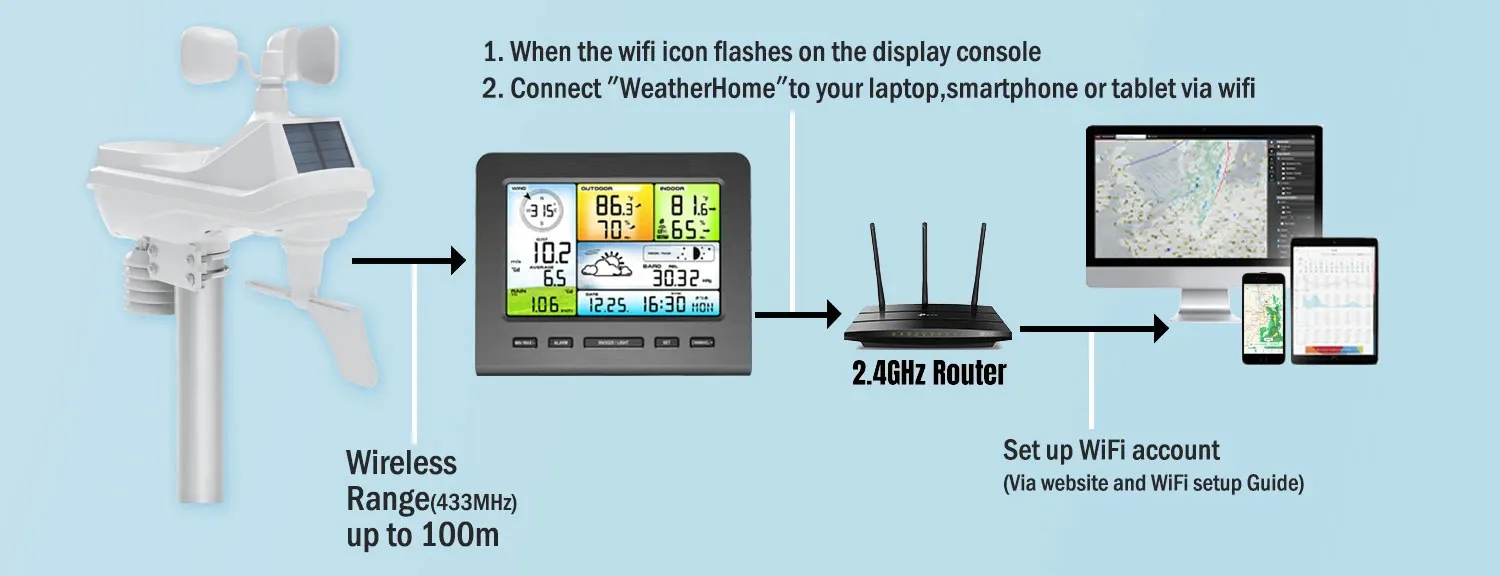
How to connect the Indoor Console to your local area Wifi

When using your Nicetyower weather station for the first time, if the device you purchased has Wi-Fi capability, how do you connect the Indoor Console to your local Wi-Fi network? Please follow the steps below:
Enter WAP Mode: Power on the console for the first time (Please use the power adapter for the first power-up.), or long-press the MIN/MAX/- button for 3 seconds in normal mode. The flashing WiFi icon indicates WAP mode is activated for WiFi configuration.
Connect Device: Use a laptop, tablet or smartphone to connect to the console WiFi, whose SSID starts with “Weatherhome” followed by a unique code.
Notes:.
Only one device can be connected in WAP mode at the same time
Reconnect your end-device to the default WiFi after completing the console WiFi setup.
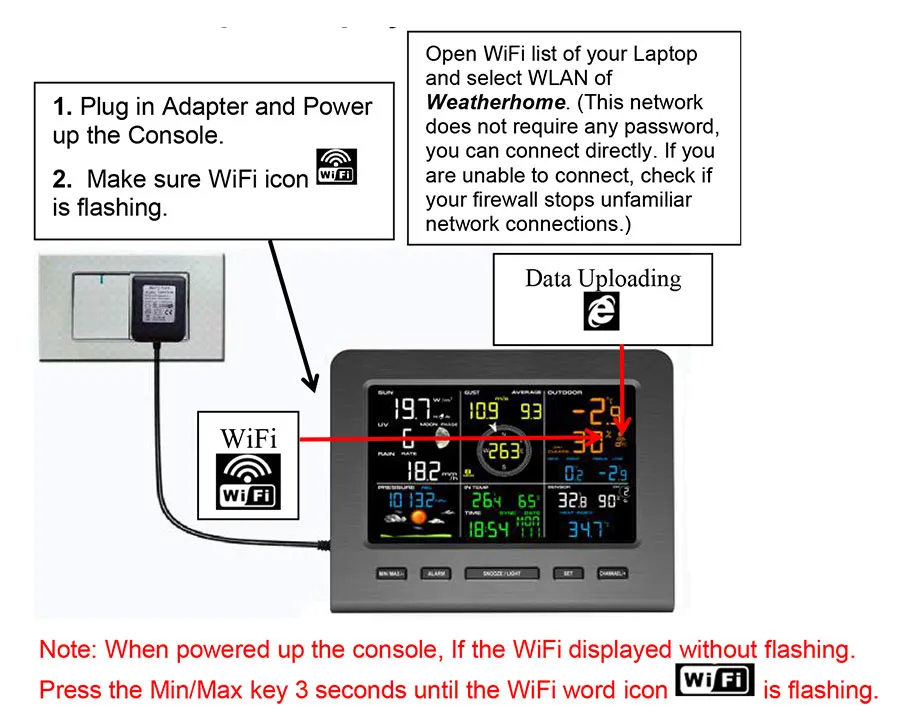
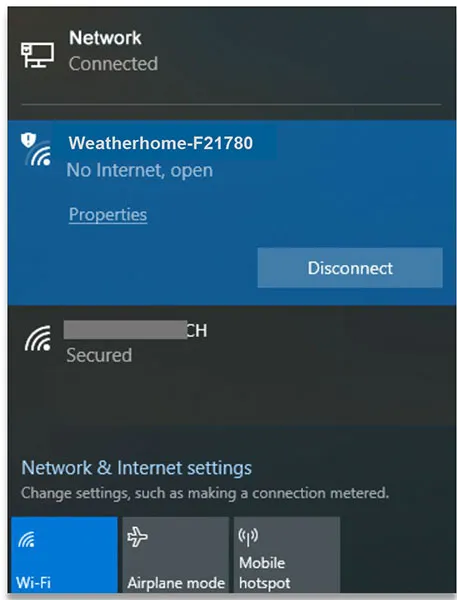
Connect your laptop (PC) to the display console’s WiFi: In Windows open WLAN/network settings and connect to the “Weatherhome” network.
Display Console Web Page Configuration
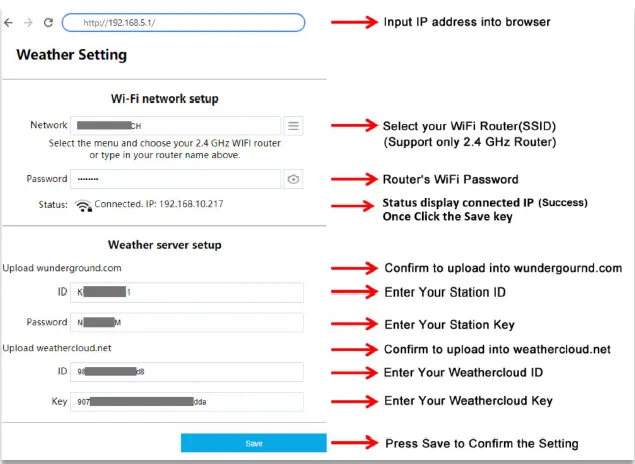
After connecting your end-device to the weather station display console’s WLAN, enter http://192.168.5.1 in your browser’s address bar to access the console’s configuration page.
Note: If the page fails to load (e.g., prompt for “URL spelling error”) or the browser treats the IP as a search query, ensure the full protocol http:// is included (do not enter just 192.168.5.1).
Console Network and Weather Server Setup
Notes:
When entering the station ID and key, copy and paste exactly (pay attention to spaces and case sensitivity).
Hidden SSID WLANs cannot be detected automatically. Enter the SSID manually if your network is hidden.
Time Zone Setup
The display console’s time zone will automatically sync with your local time zone once the console’s WiFi connection is successful (no manual setup required).
WiFi Troubleshooting (Condensed)
- The console only supports 2.4GHz WiFi. For dual-band routers, use the 2.4GHz band.
- If WiFi does not show on the console, check the router.
- Verify modem WiFi SSID and password are correct.
- Ensure the console is connected to AC power; it cannot connect to WiFi on batteries only.
WiFi Connection Status
1. WiFi icon steady on: Connected to WiFi router.
2. WiFi icon flashing: Unstable signal or connecting to router.
3. WiFi icon off: Not connected to WiFi router.
When connected to a weather server, the data signal icon appears.
Flashing: Uploading data to server.
Disappeared: No server connection for over 30 minutes.