Don't miss our holiday offer - up to 50% OFF!

How do I sign up for Weathercloud?

Weathercloud Platform Overview
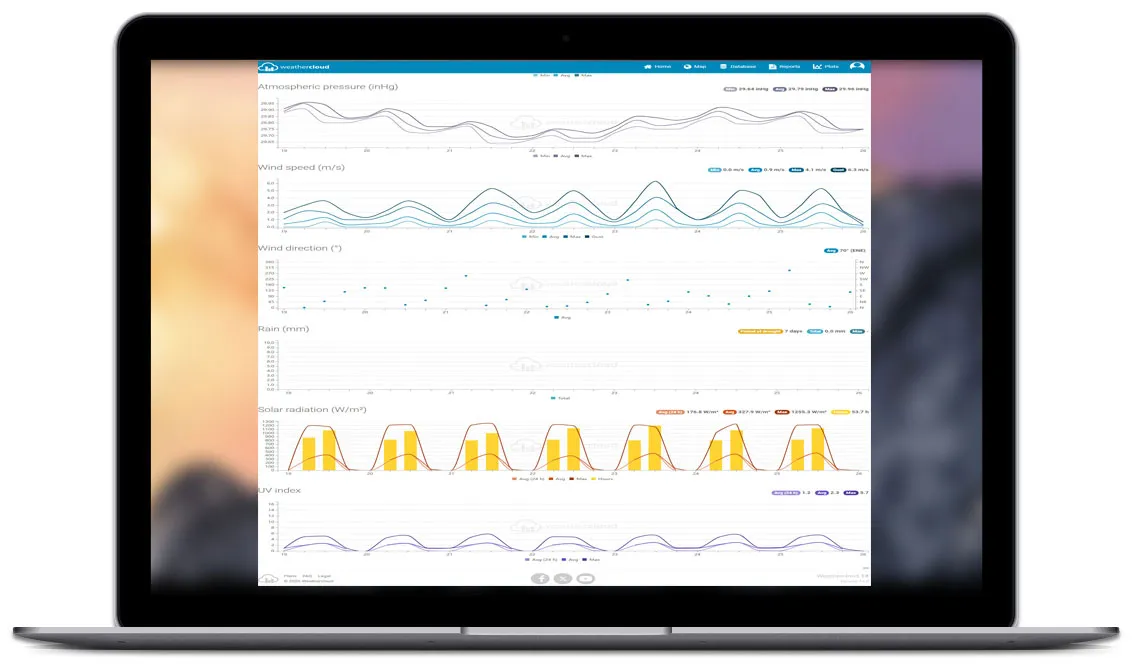
Weathercloud is a real-time weather data collection and sharing platform for personal weather stations, enabling users to view and analyze current and historical weather conditions.
Key Features:
- Compatible with various weather stations for seamless data upload and management.
- Supports real-time monitoring, historical data access, and weather observation sharing.
- Provides data visualization tools including detailed graphs and reports for trend analysis.
- Multi-device compatibility (computer, tablet, mobile) for anywhere access.
A robust solution suitable for both personal and professional weather data management.
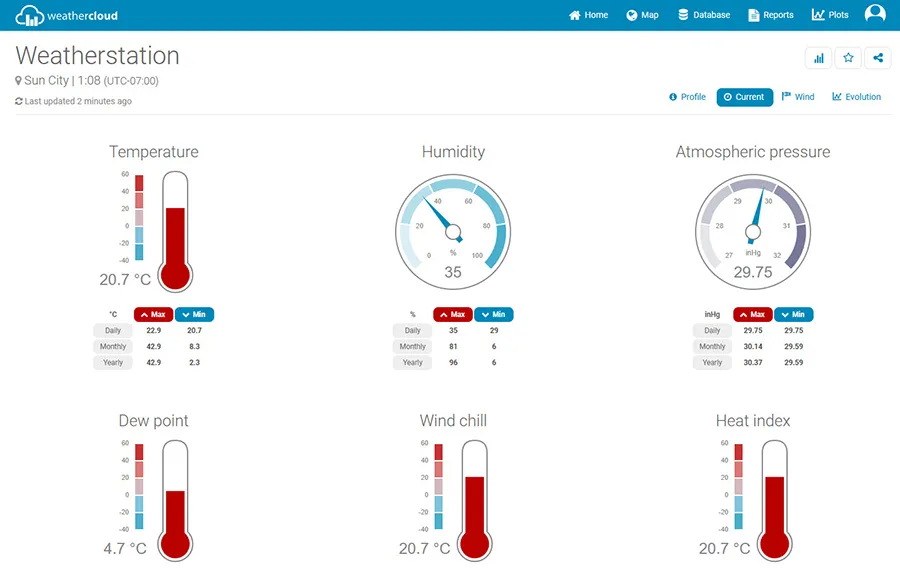
Weather Server Registration Guide
Notes
If you already have Weathercloud and Wunderground accounts, simply create a New Device to add your new weather station info.
You may register for either/both Weathercloud and Wunderground to upload weather data.
Weathercloud.net Sign-up
Tip: For an optimal experience, register using a desktop or laptop computer.
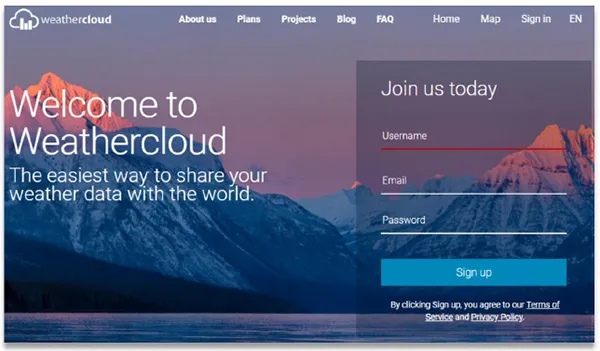
Visit the official website: https://www.weathercloud.net
Enter your Username, Email and Password
Click the Sign up button to create your free account.
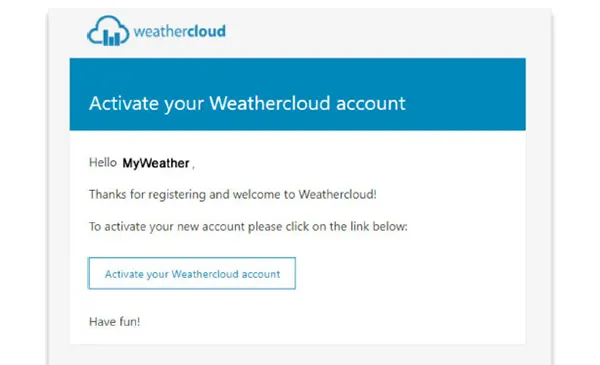
You will see a prompt page via the activation email sent by Weathercloud to your registered mailbox.Check your registered email, verify the message and click the Activate your Weathercloud account button.
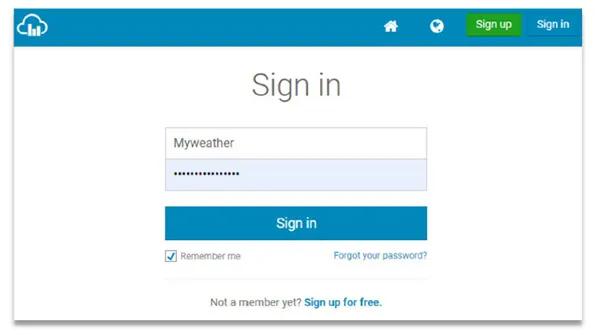
Click the Sign in button to access the Weathercloud account login page.
Enter the Username (email address) and password used during sign-up to log in to Weathercloud.
Note: Select Remember me to save your login credentials and avoid repeated entry in the future.
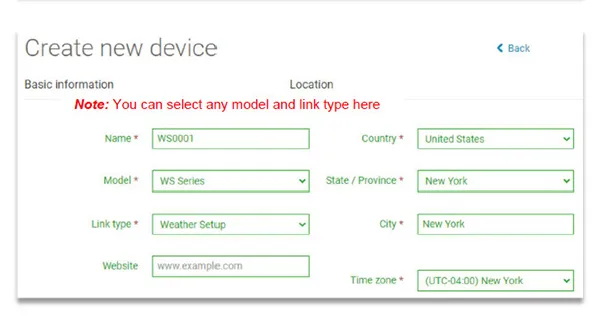
Click the Create device button and enter your weather station and location information. Fields marked with a red * are required.
Note: You may select any weather station model and link type—these two parameters do not affect functionality.
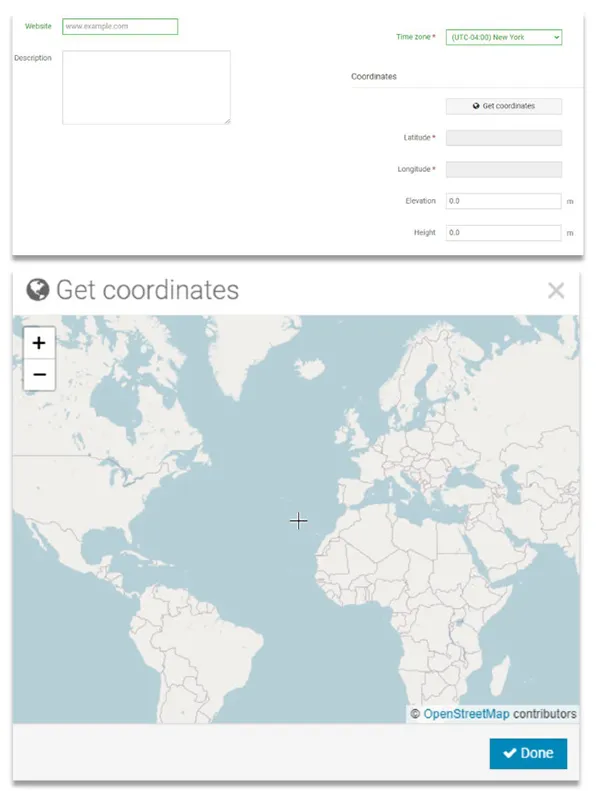
Click Get Coordinates to locate your position on the map. The crosshair in the center should mark your weather station’s location.
Use the + and – buttons to zoom the map in or out. Drag the crosshair to your precise location, then click the DONE button.
Note: You may select any model and link type here.
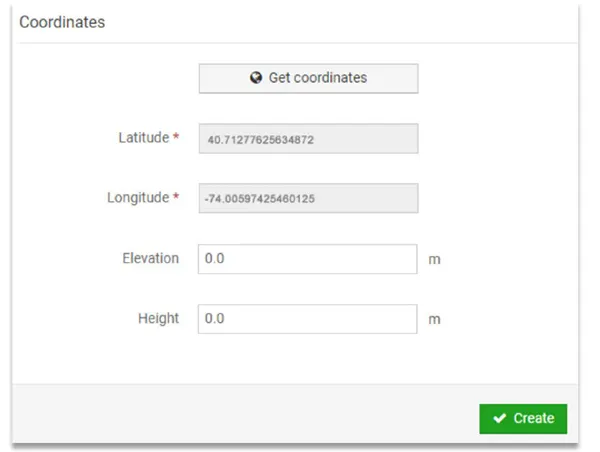
After entering the longitude and latitude parameters, click the Create button at the bottom.
The device has been successfully added to Weathercloud (as shown in the image).
Click Link under the Settings menu, then record the Weathercloud ID and Key for later use.
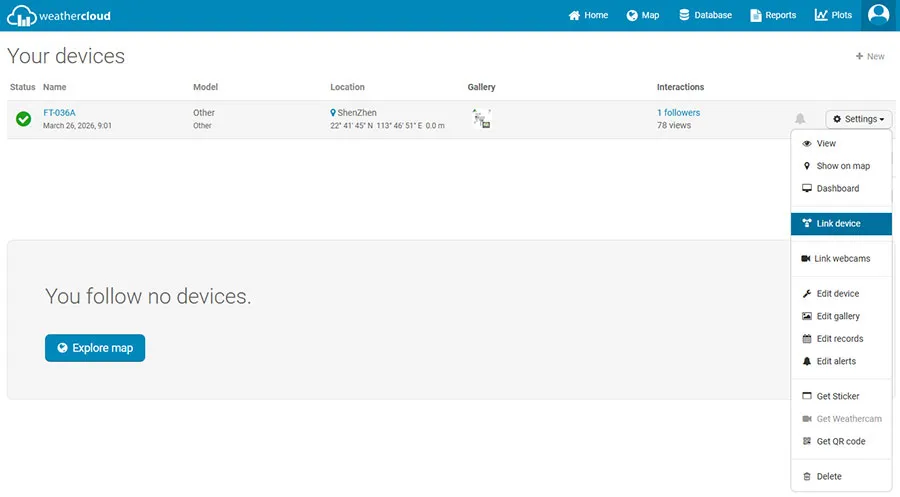
After adding the device, select Link Device from the Settings dropdown menu to finish setup.
Note: The Weathercloud ID and Key will also be sent to your registered email.